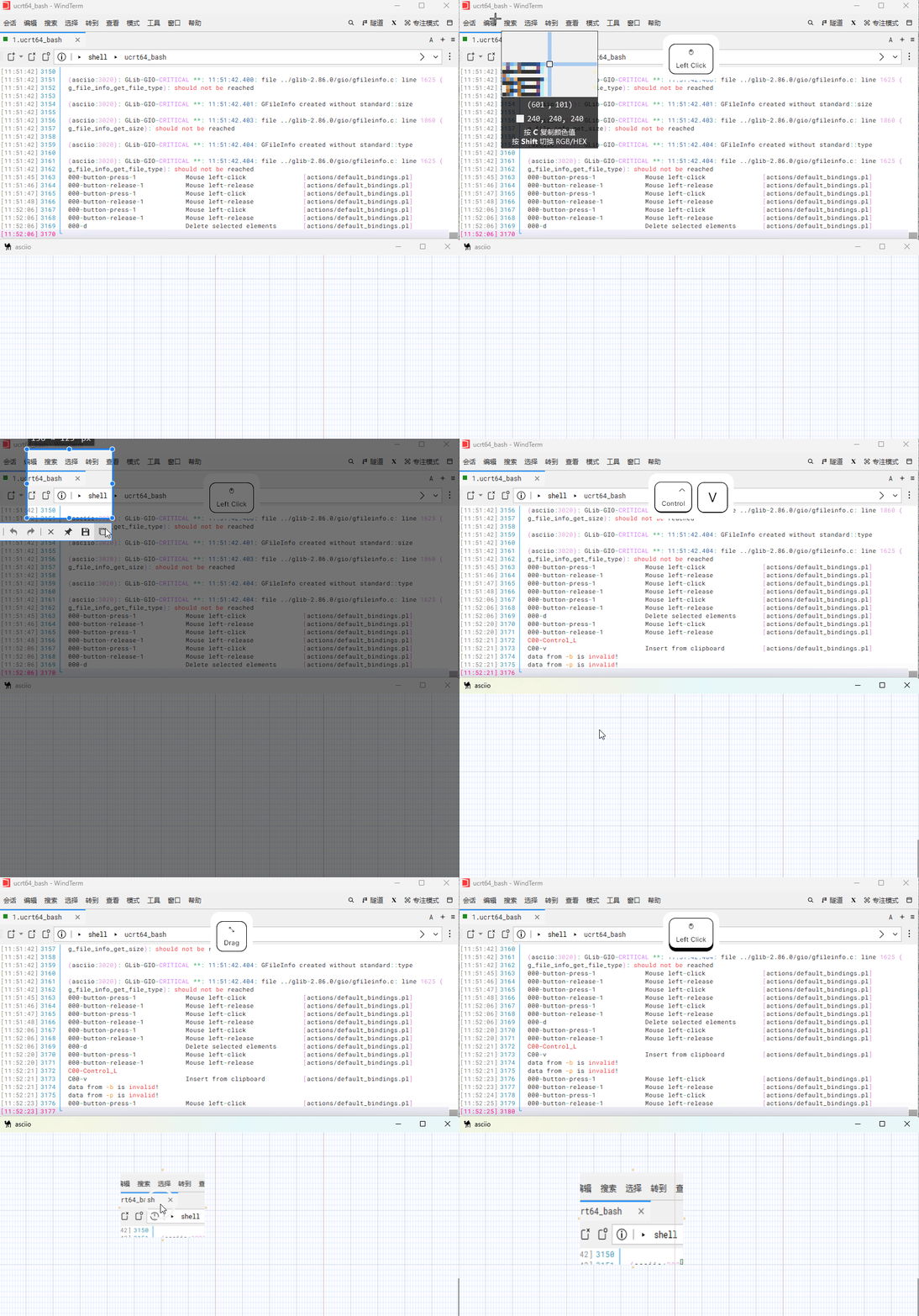
Asciio image box
The purpose of an image box is to have a background image; it’s ideal as a background when creating ASCII Art in Pen Mode.
- Image boxes have grayscale and transparency settings
- Images aren’t exported instead a text placeholders will be exported
Bindings
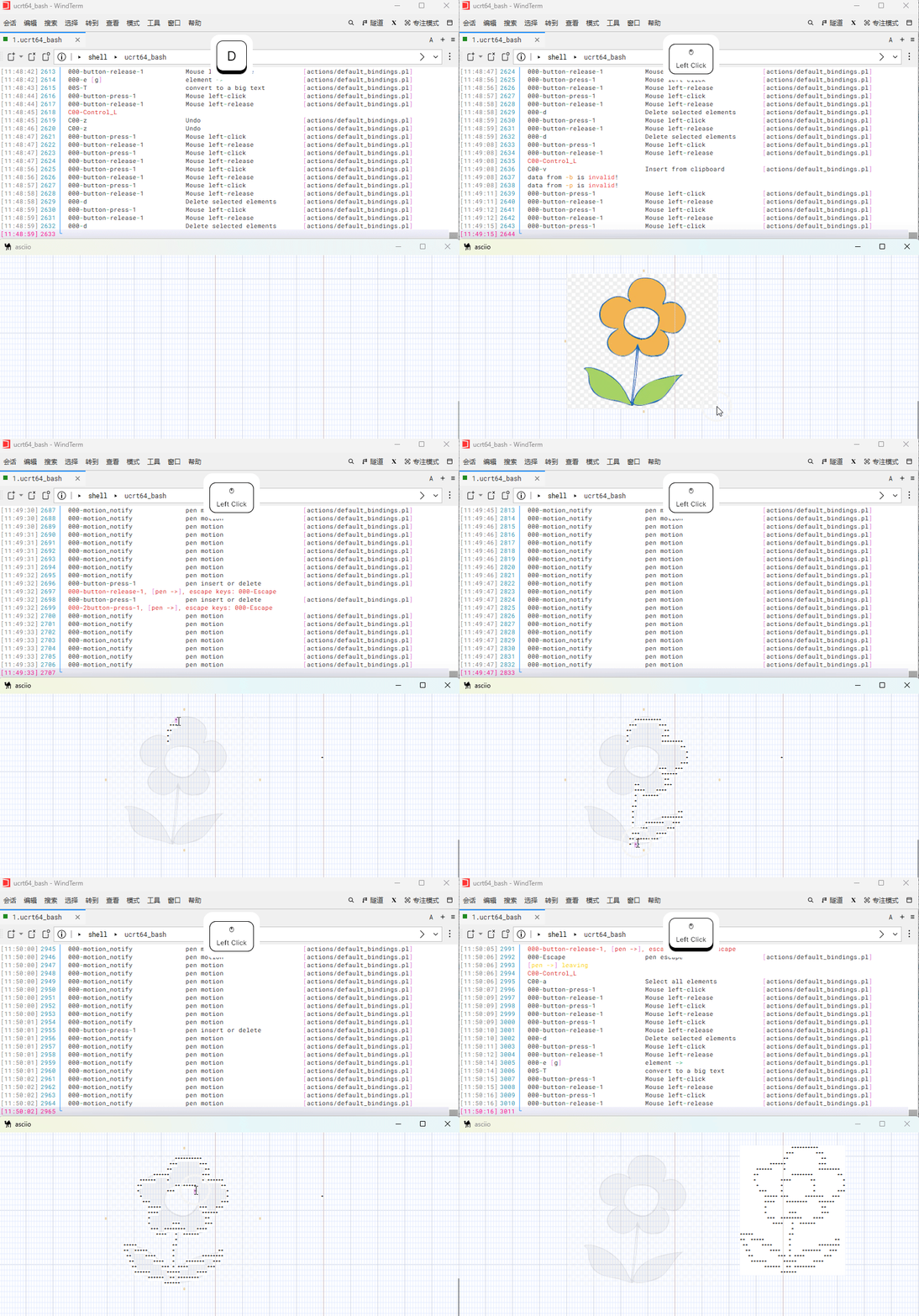
Prefix: All operations require pressing «I» to enter the image Box group.
| action | binding |
|---|---|
| Enter image box group | «I» |
| All bindings |
Create an image box from a file
| action | biding |
|---|---|
| inserted from file | «i» |
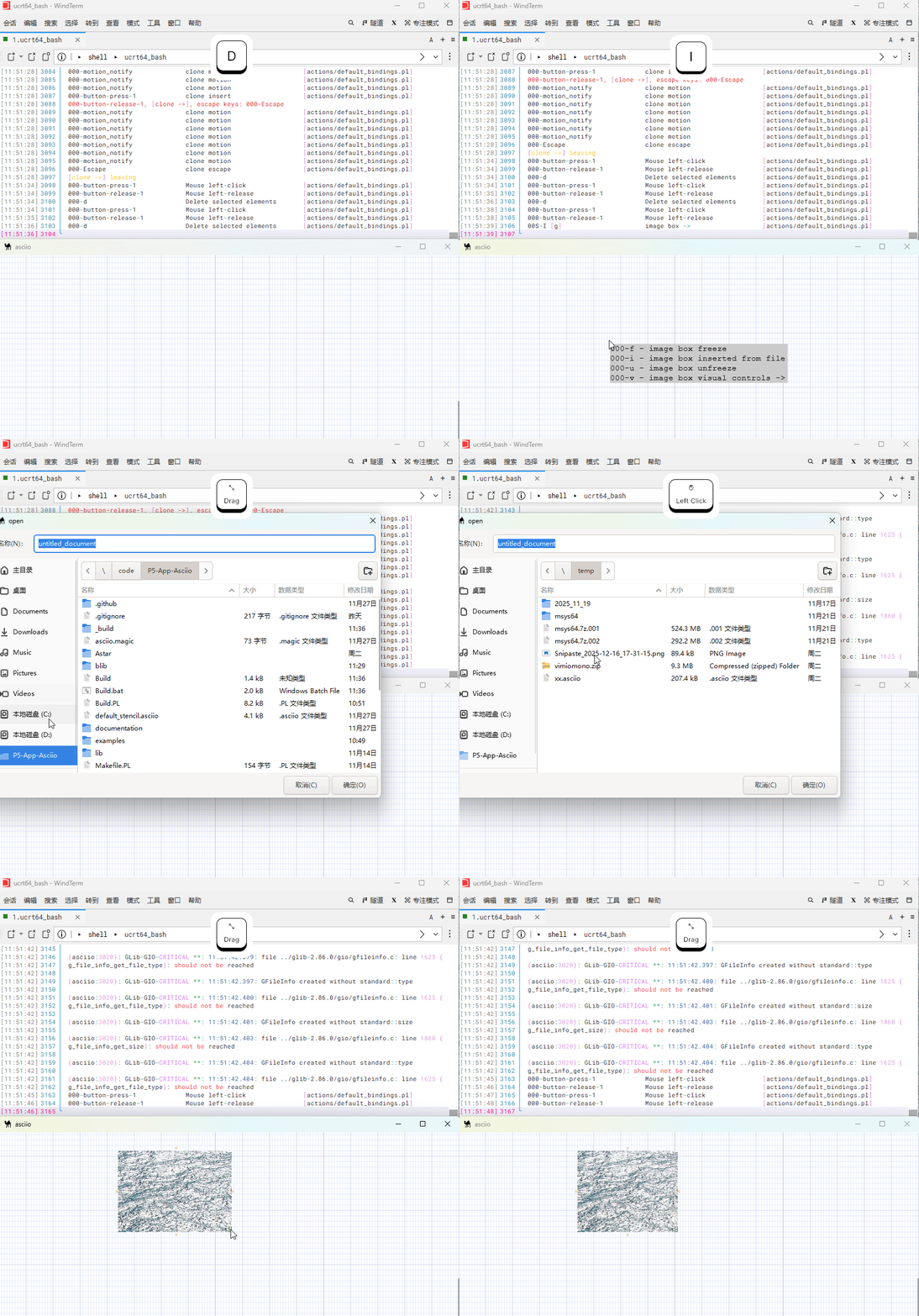
Image box operations
Image boxes, like ordinary boxes, support resizing and moving.
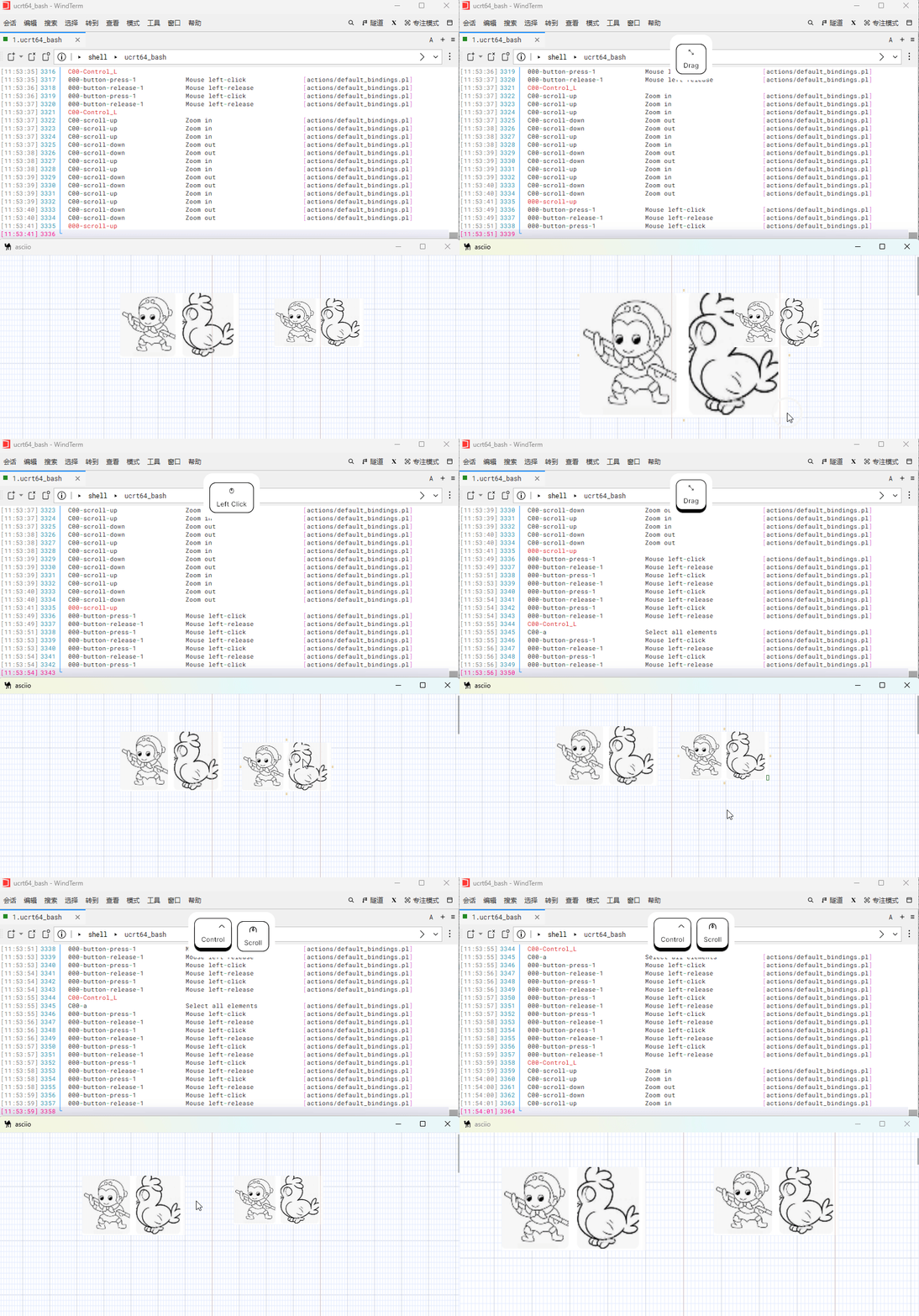
image box visual controls sub group
| action | binding |
|---|---|
| rendering control | «<c» |
| action | bingding |
|---|---|
| increase gray scale | «g» |
| decrease gray scale | «G» |
| increase alpha | «a» |
| decrease alpha | «A» |
| revert to default | «o» |
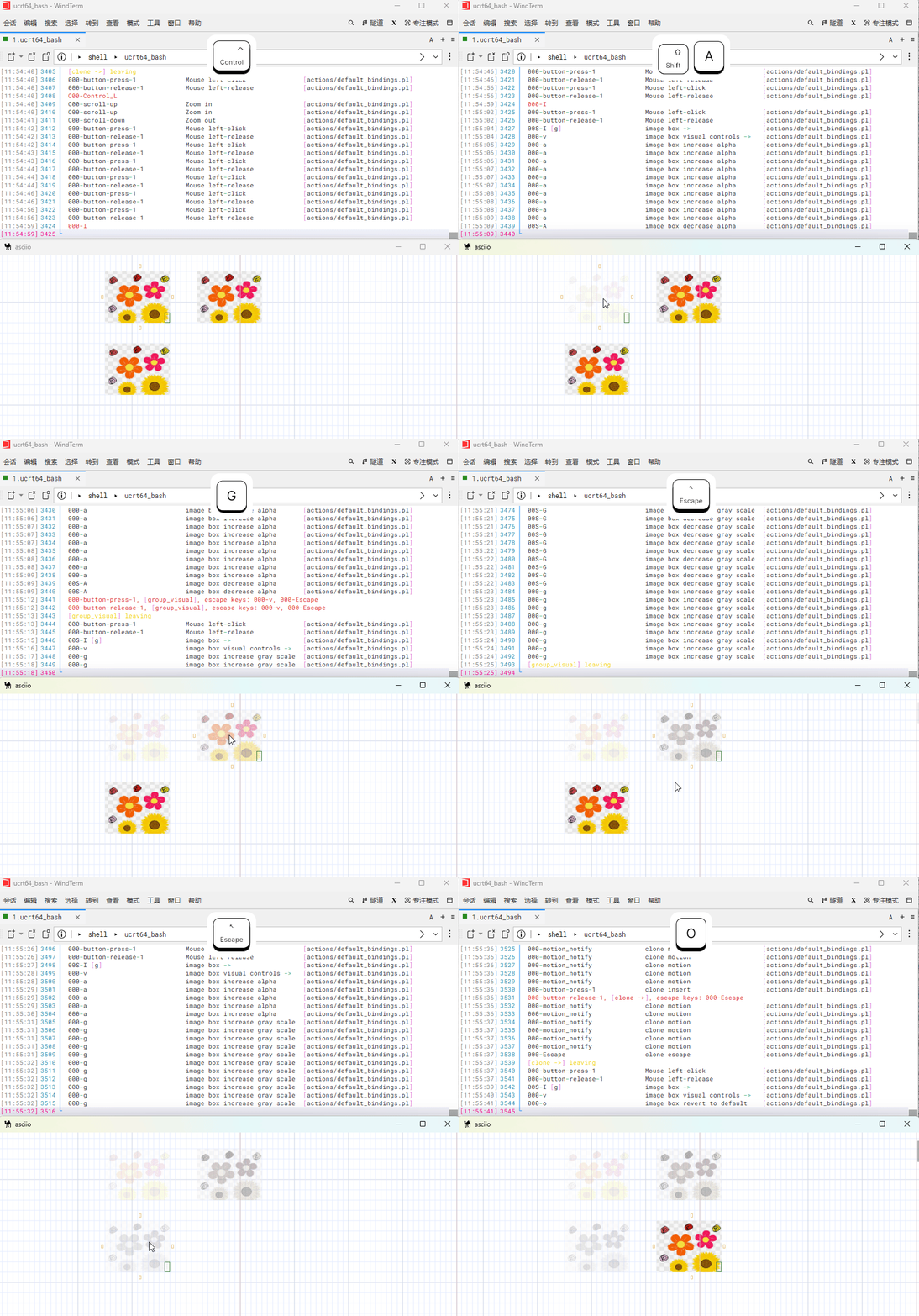
Freezing image boxes
Bindings:
| action | binding |
|---|---|
| freeze to background | ’«f»` |
| thaw | ’«t»` |
Frozen image boxes
- can’t be resized
- can’t be moved
- are put in the background
- they can’t be deleted if frozen and in the background, thaw to delete
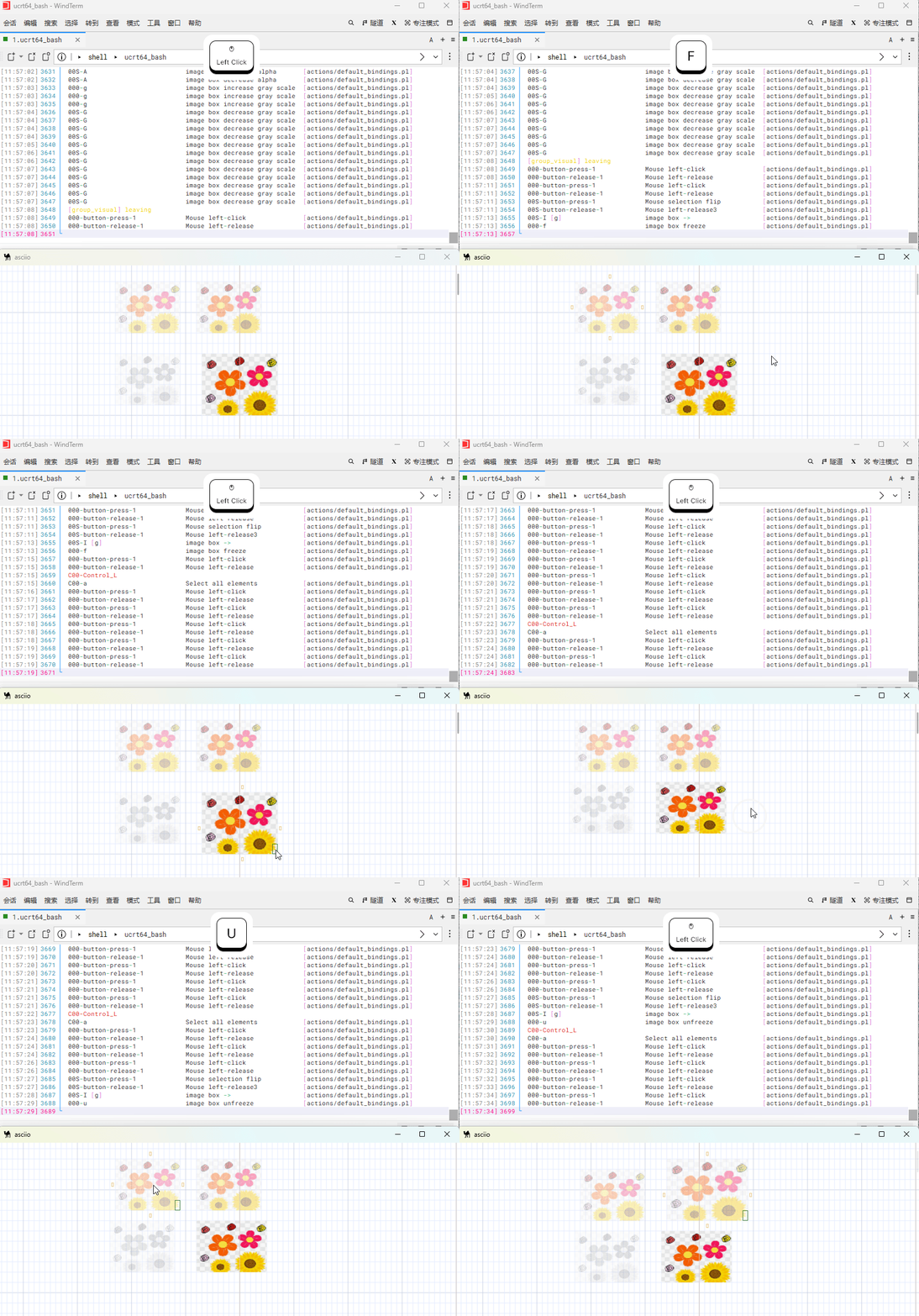
Copy and paste the image from the clipboard
Under Linux system, we need to install the xclip tool.
Copy an image to the clipboard through one of the following commands:
- If the image is in
PNGformat then use the following command
xclip -selection clipboard -t image/png -i image.png
Only PNG format is supported.
Under the Windows system, we can directly use the system function to copy a
picture.
Use Ctrl+v directly in the canvas to paste the image into the canvas,
and it will automatically create an image box.